Posted in Advanced Photo Assignments

Make a Splash!

Today’s Agenda:

  • Turn in Levitating project in Teams.
  • Discussing and preparing for “Make a Splash” photo experiment (taking place Wednesday and Thursday).

Make a Splash! (Part One)

Objective: use Shutter Priority Mode to freeze the splash of water.

With a group of 3-4, you will need to set up a splash station outside.  You will be provided with materials that you can use as backdrops.

Bring in your own vases, fish tanks, things to splash into the water (or other liquid).  I will provide some limited items as well.

Take turns being the photographer while others hold up backdrops, drop items in water, and assist in other ways.

Edit and Post your best shots (however many you like!) to your blog in gallery mode. Change link to media file, as always. 🙂

Posted in Photo 1 Assignments

Tuesday 9/21/21: Photoshop Tutorials

Today’s Agenda:

  • Photoshop Hands-On Tutorials
  • Post and Turn in Symbolic Portrait w/ Shallow DOF (Depth of Field)

Photoshop Hands-On Tutorials

Category: Photo Editing

Skill Level: Beginner

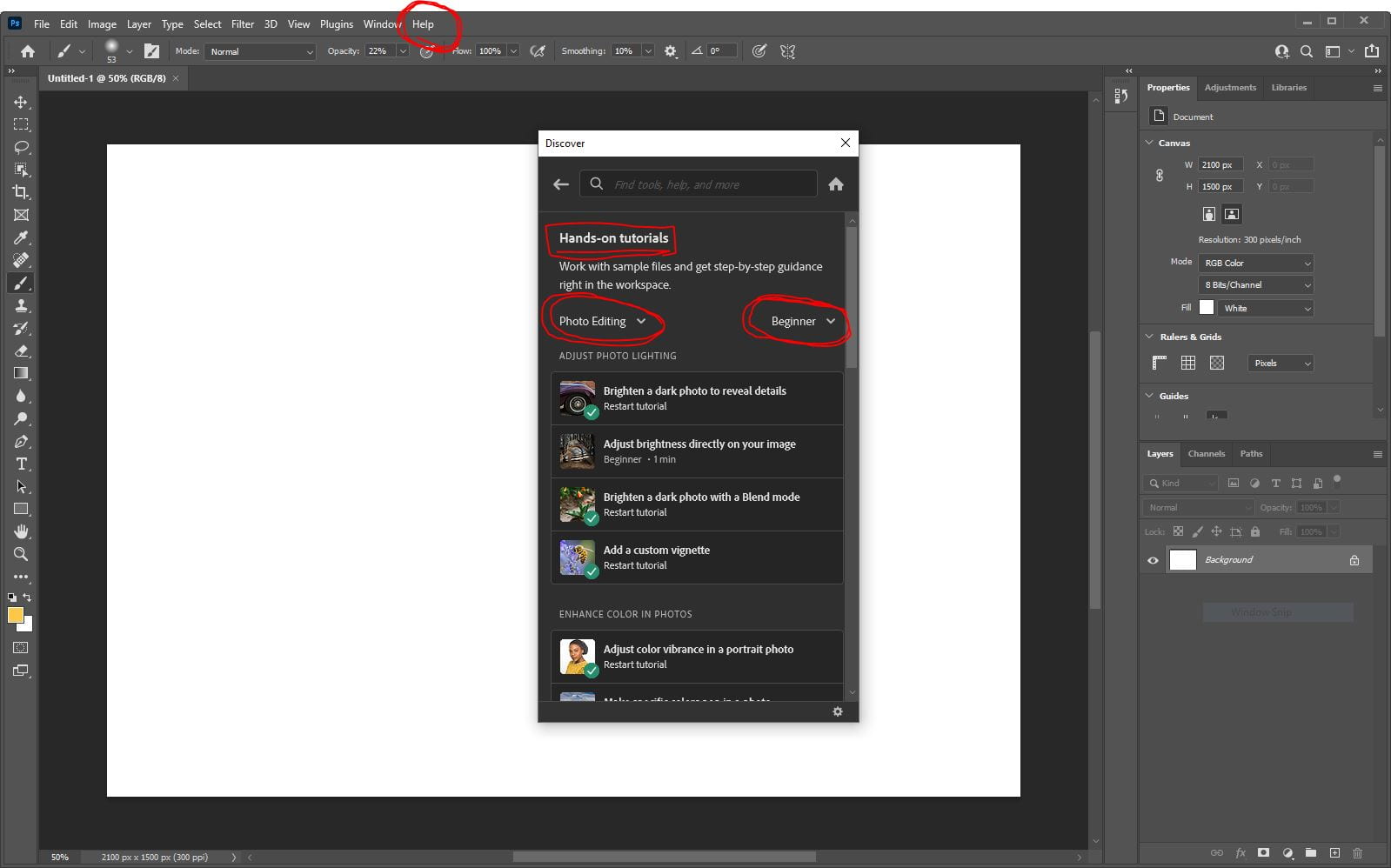
Here’s how you get to the tutorials:

Use the bottom left search bar on your computer to search “Photoshop”. Click to Open the App.

After signing in with your student email (usually only necessary the first time you use Photoshop), go to “Help” at the top and select “Hands-On Tutorials”.

Use the category and skill level mentioned above (Category: Photo Editing, Skill Level: Beginner.  If the tutorials don’t show, restart your computer and try again.

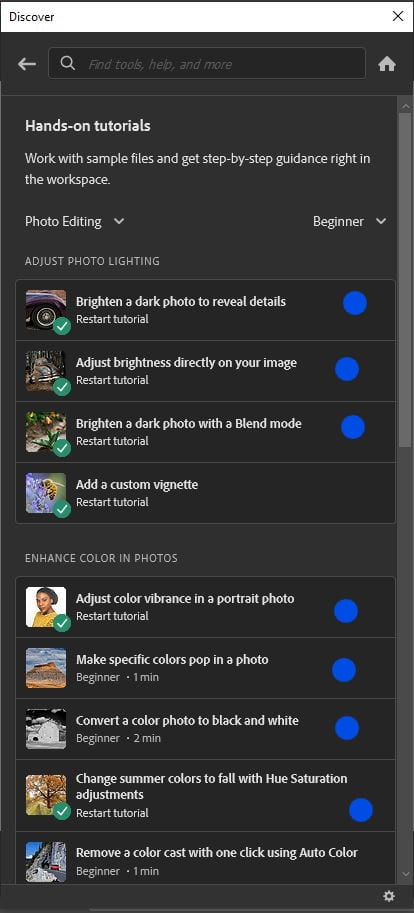
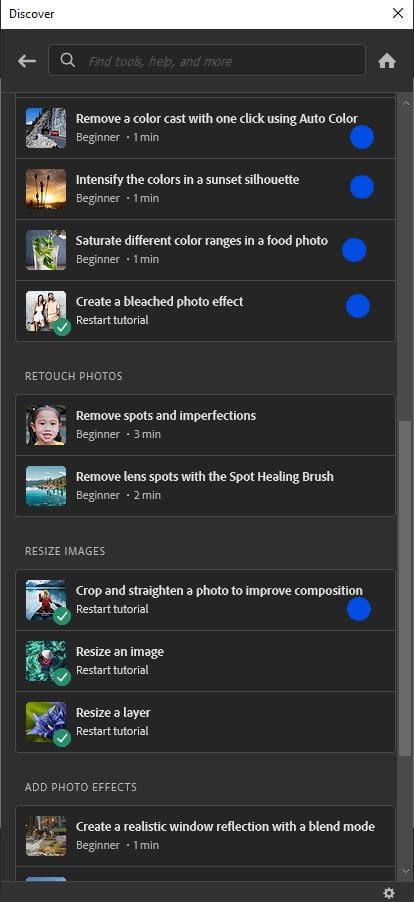
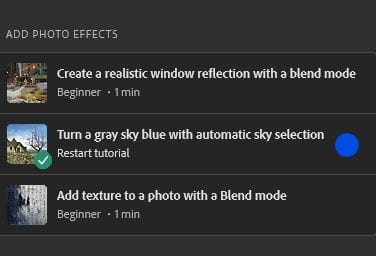
Complete the tutorials marked with a BLUE dot ONLY, shown in the images below (13 total!).  They each take about 1 minute to complete.

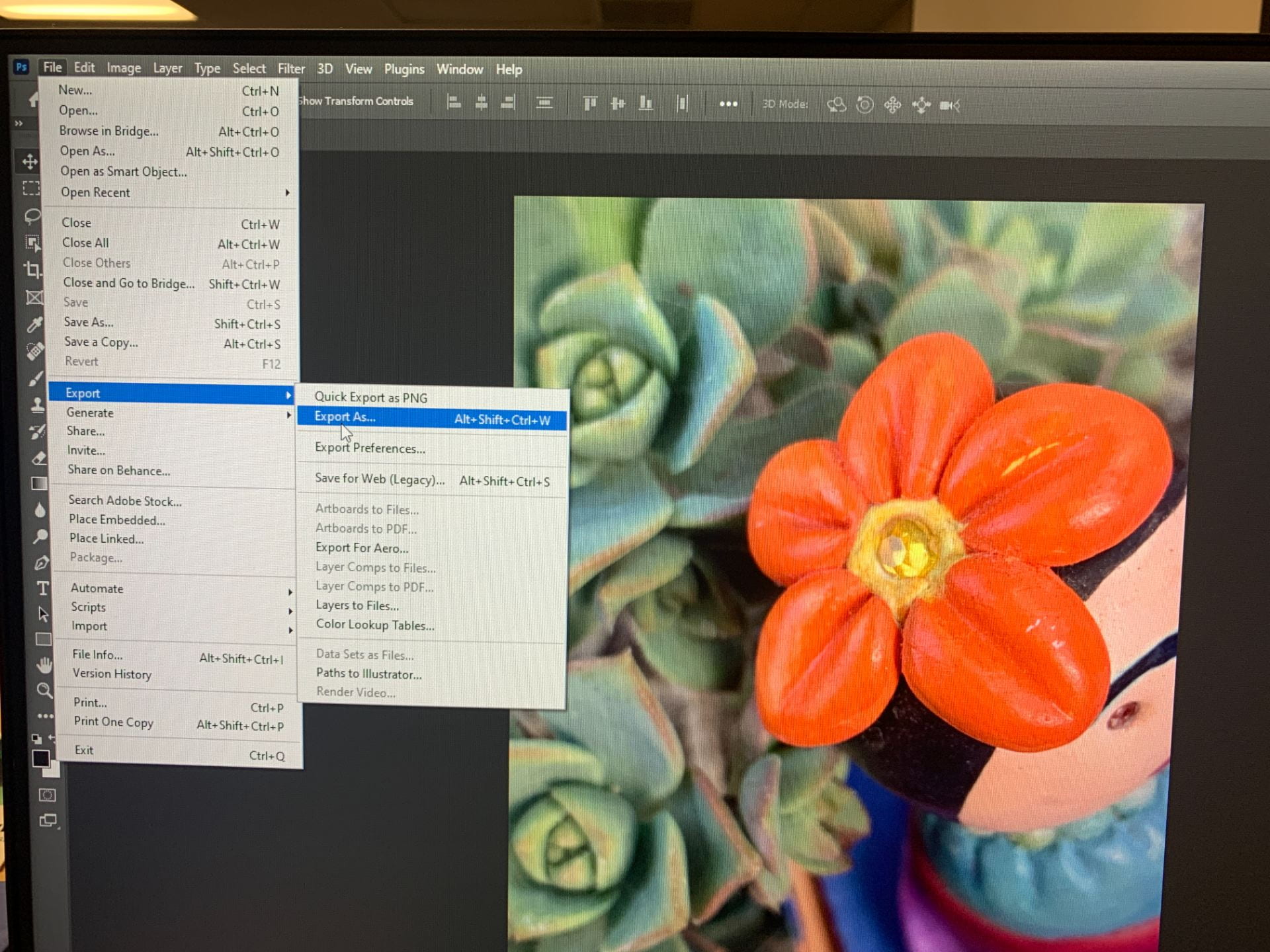
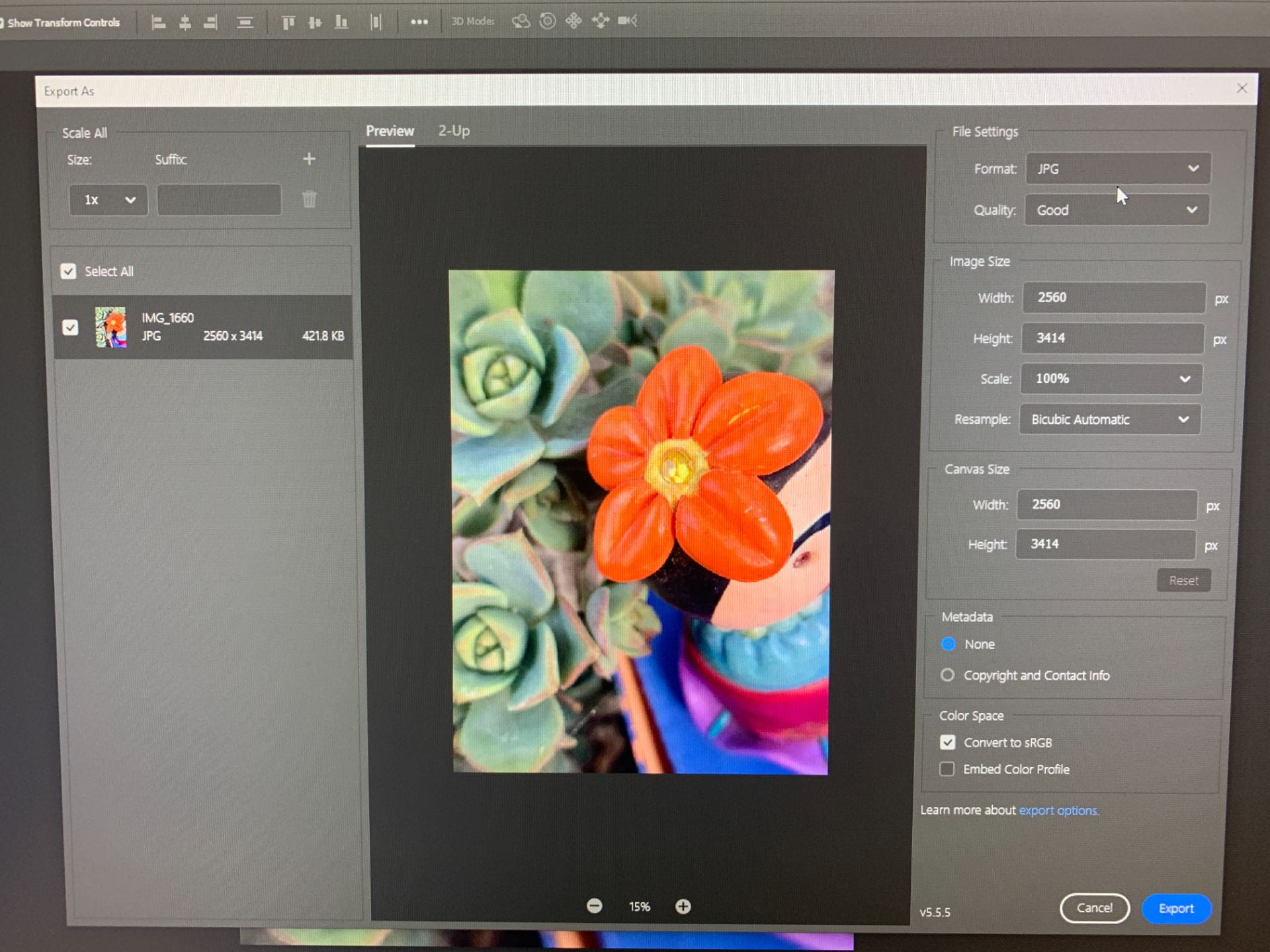
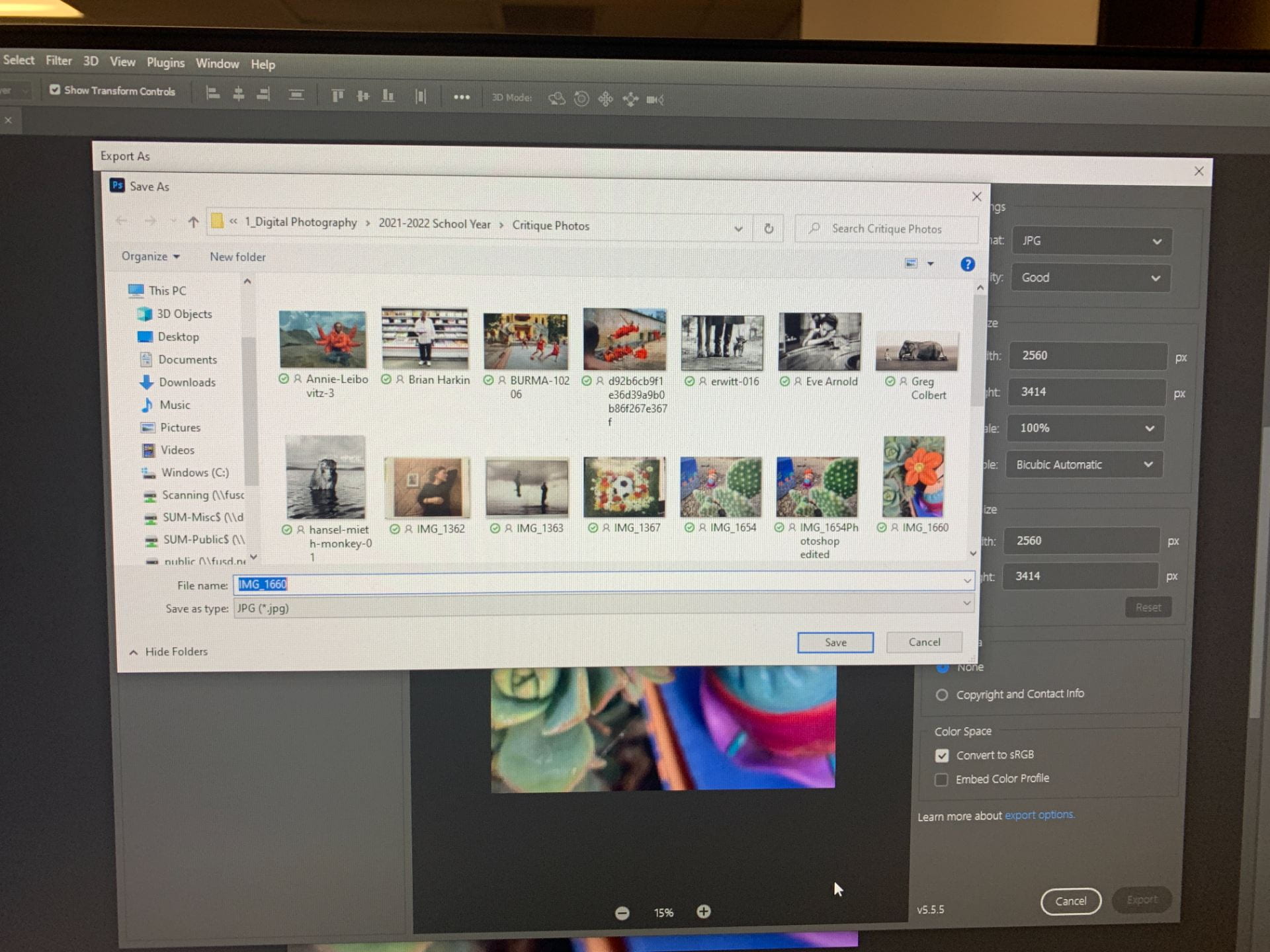
After completing each tutorial, you will need to save your resulting image as a JPG file in your One Drive (see screenshots below).

Note: If your OneDrive doesn’t appear as an option, you need to type “OneDrive” in the bottom left search bar on your computer and sign in first. 

Post your 13 completed tutorial photos on your photo blog as a gallery.

Title it: ” My Photoshop Tutorial Images”.

Change link to media file, select your choice of columns, and thumbnail size. 

Publish, go to your published post to copy link, and submit in Teams! 

Good job!