Posted in Advanced Photo Assignments, Photo 1 Assignments

Tuesday 9/29/20: Using Brushes in Snapseed + Homework

Help me pick my 4 Light and Shadow Photos!

Click here to rate my photos!

Or scan this QR Code:

QR code for this padlet


Today’s Assignment: Using Brushes in Snapseed

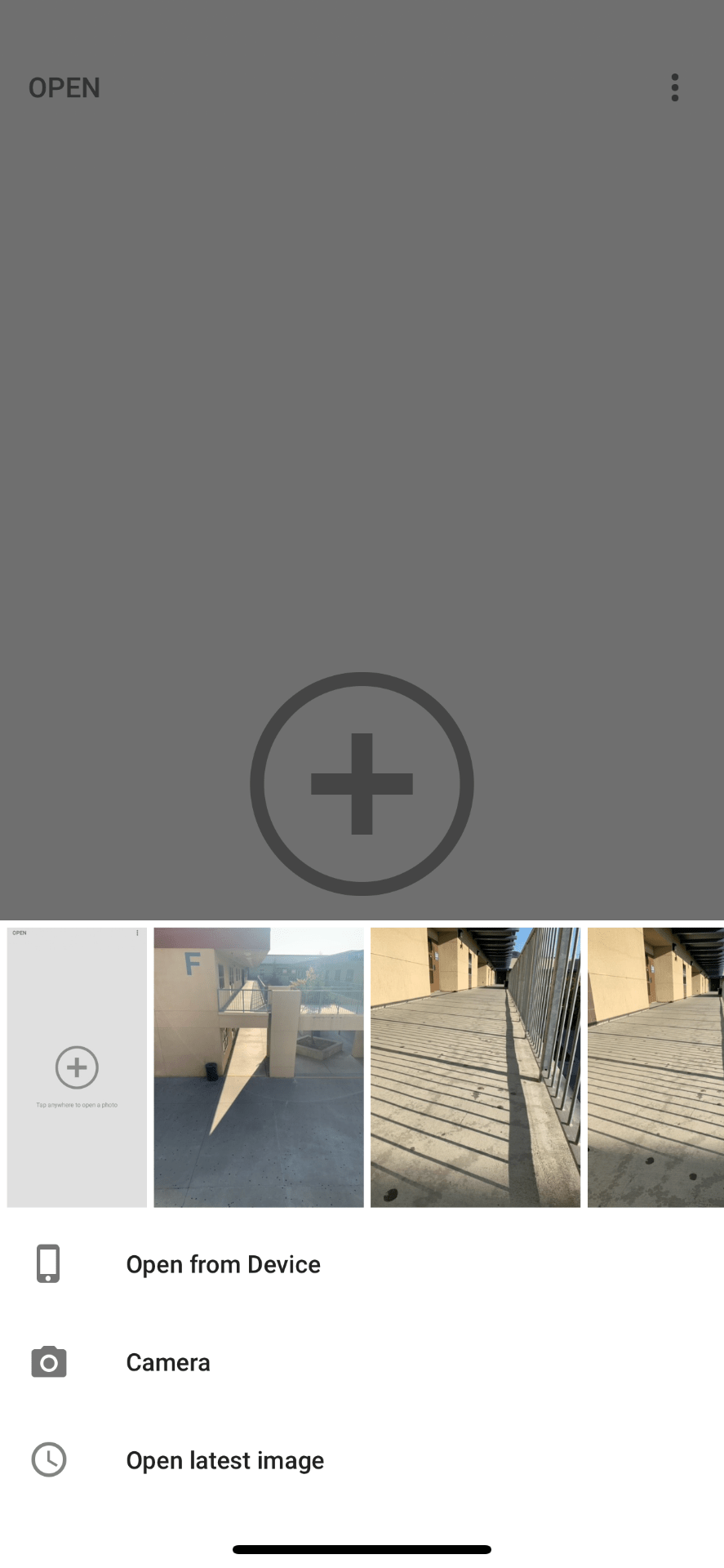
Use any photos you have saved on your phone to practice using the brush tool to add brightness or darkness to specific areas only.  You can also experiment with the saturation and temperature brushes. Submit your BEST result in the Teams assignment: “Snapseed Brush Edit”.  Include your before photo as well (not in collage).

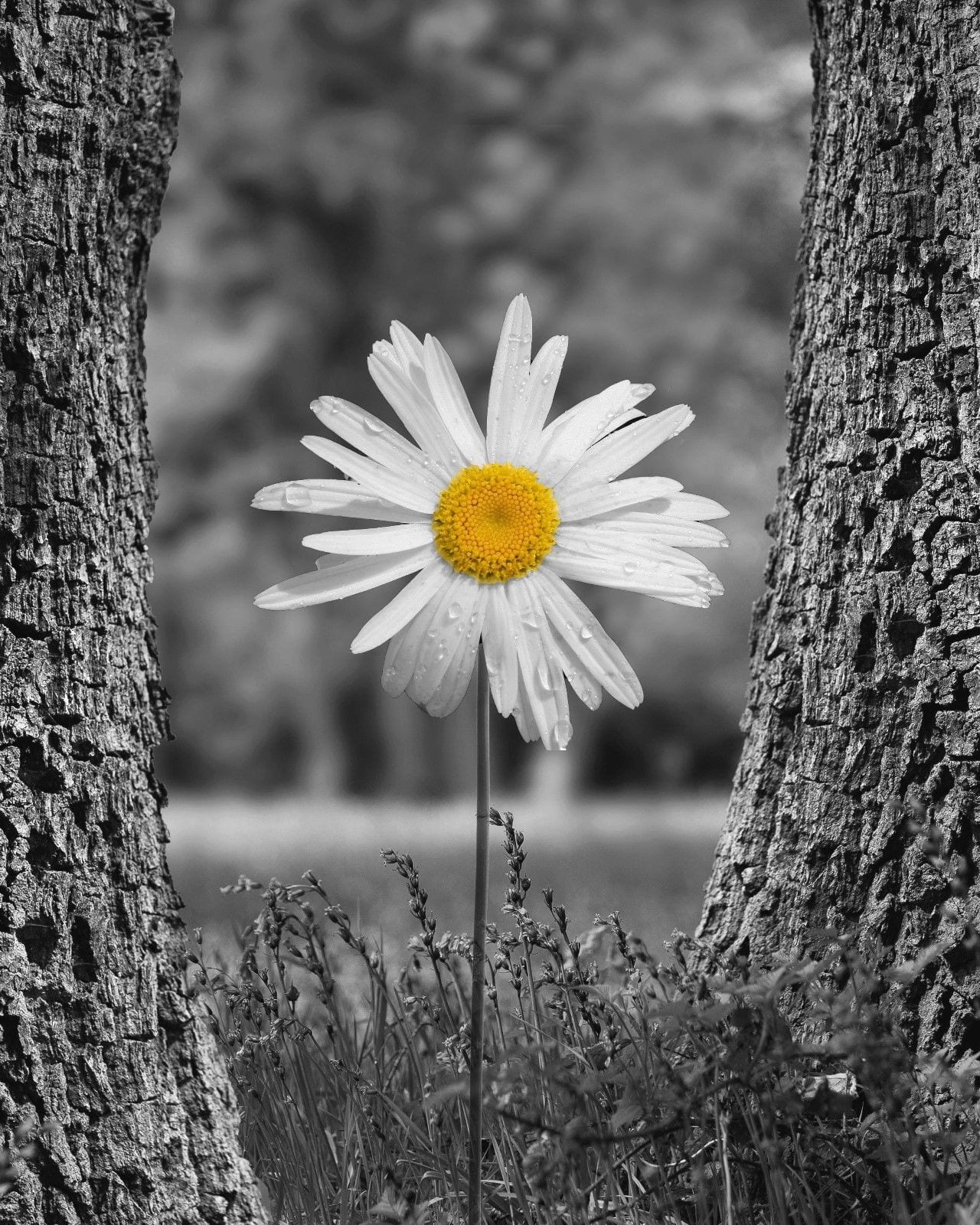
Tip:  Use the saturation brush to make part of your photo black and white!

Continue reading “Tuesday 9/29/20: Using Brushes in Snapseed + Homework”

Posted in Advanced Photo Assignments

Monday 9/28/20: Snapseed Photo Editing

Today we will spend some time going over the editing features in Snapseed.

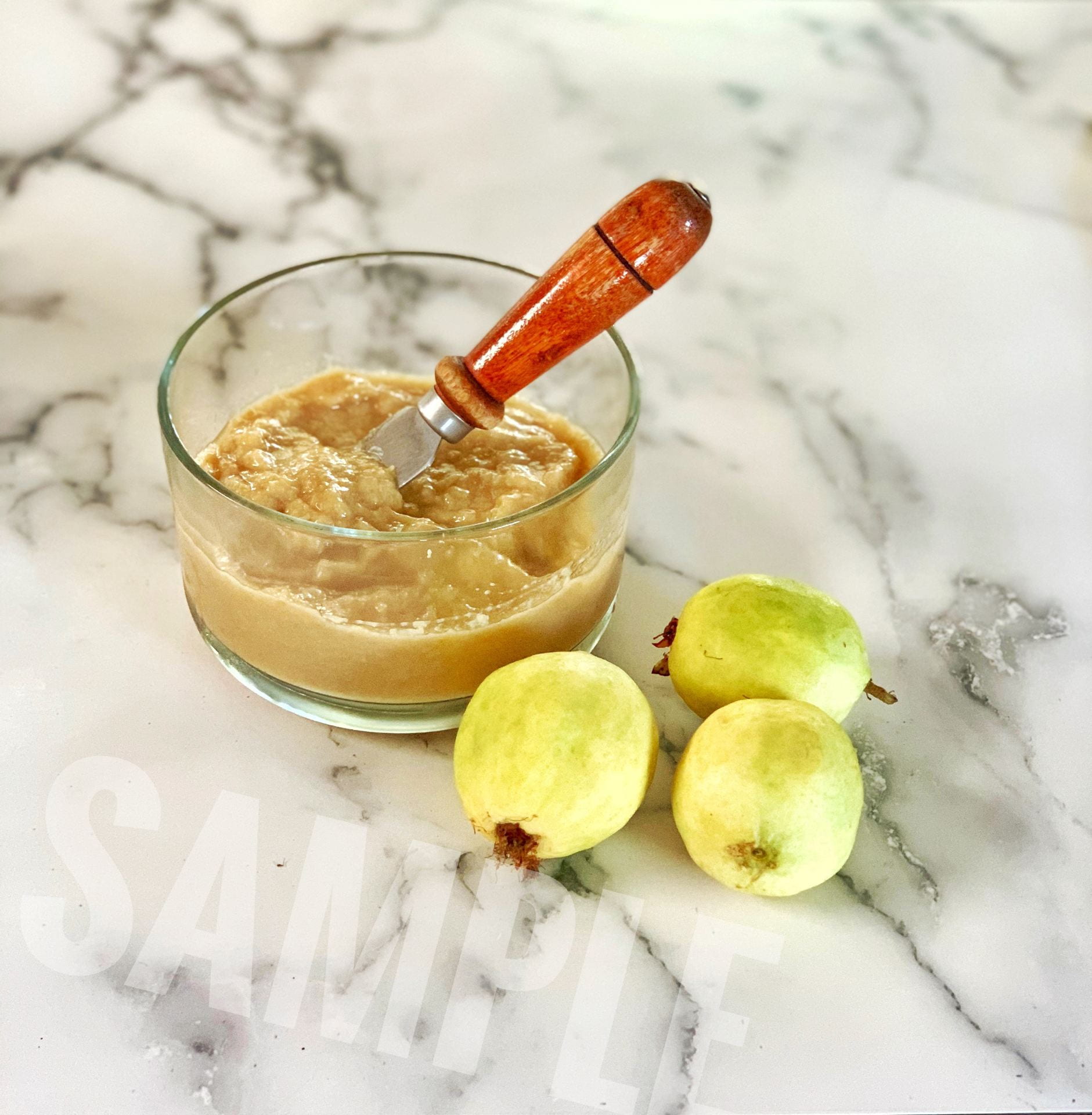
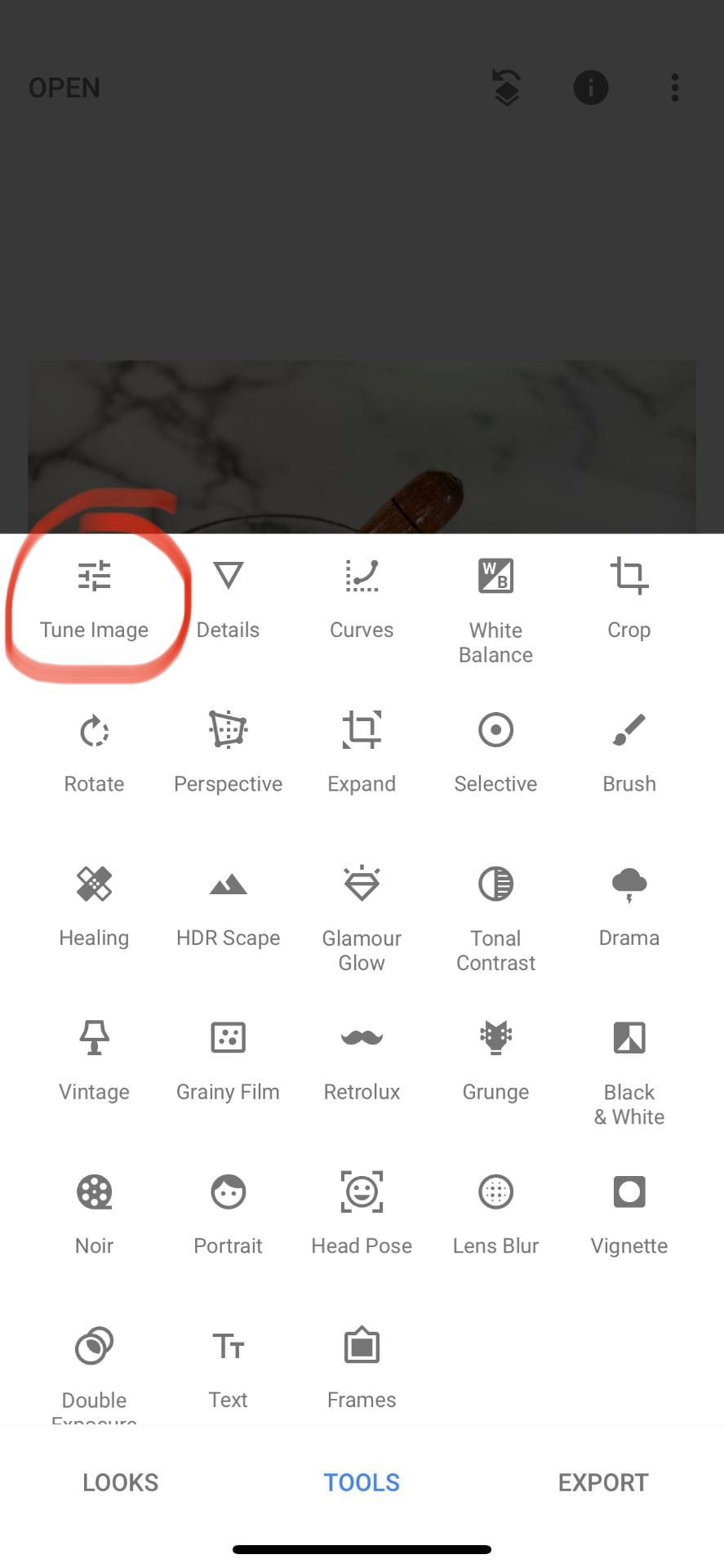
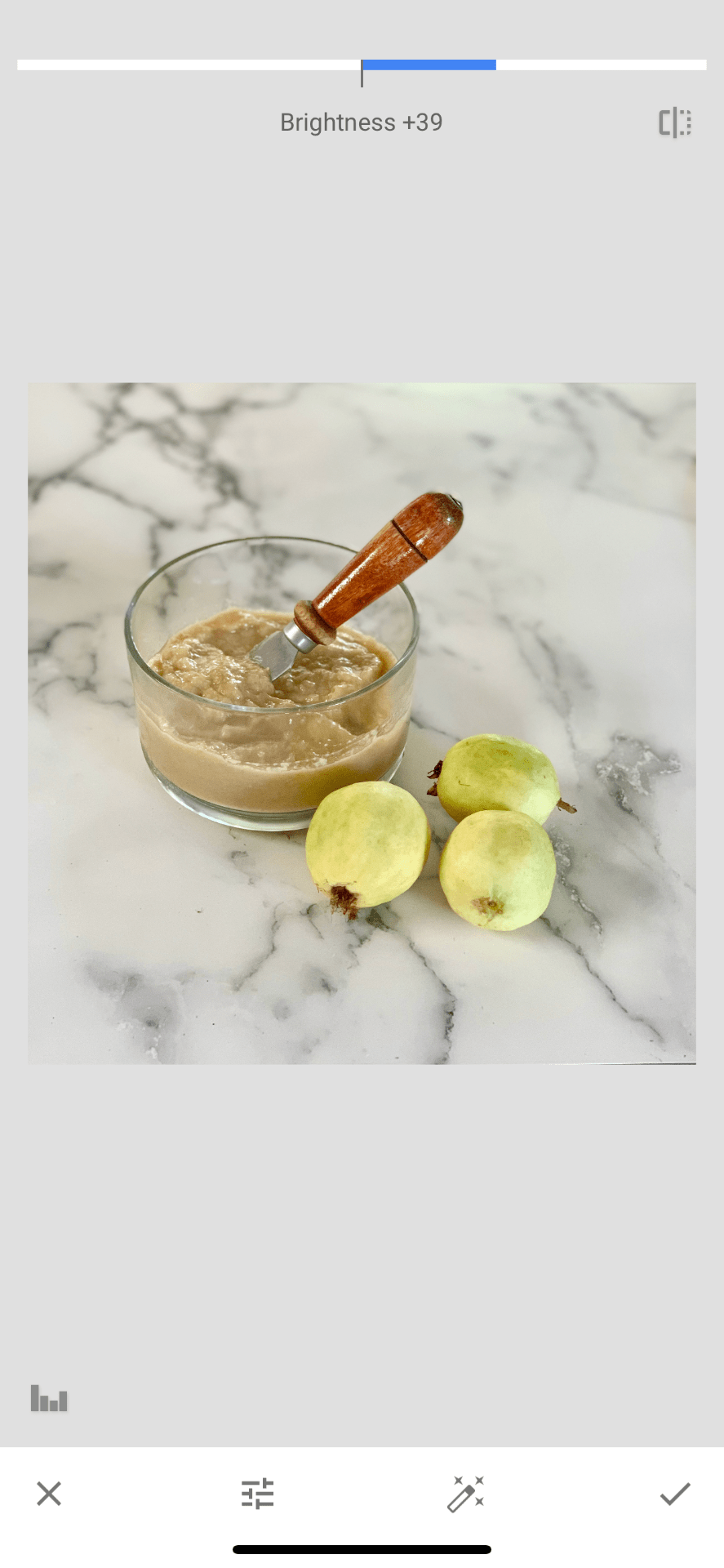
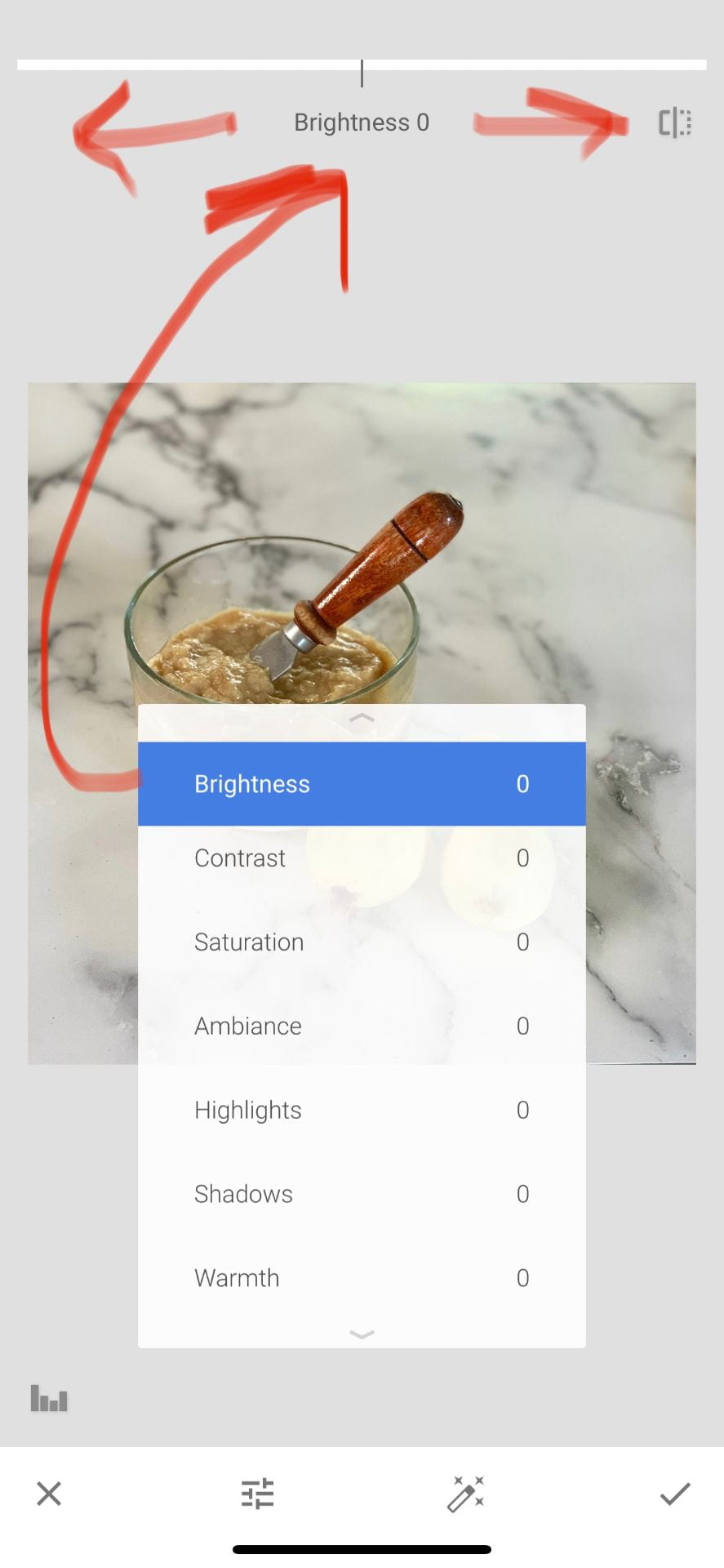
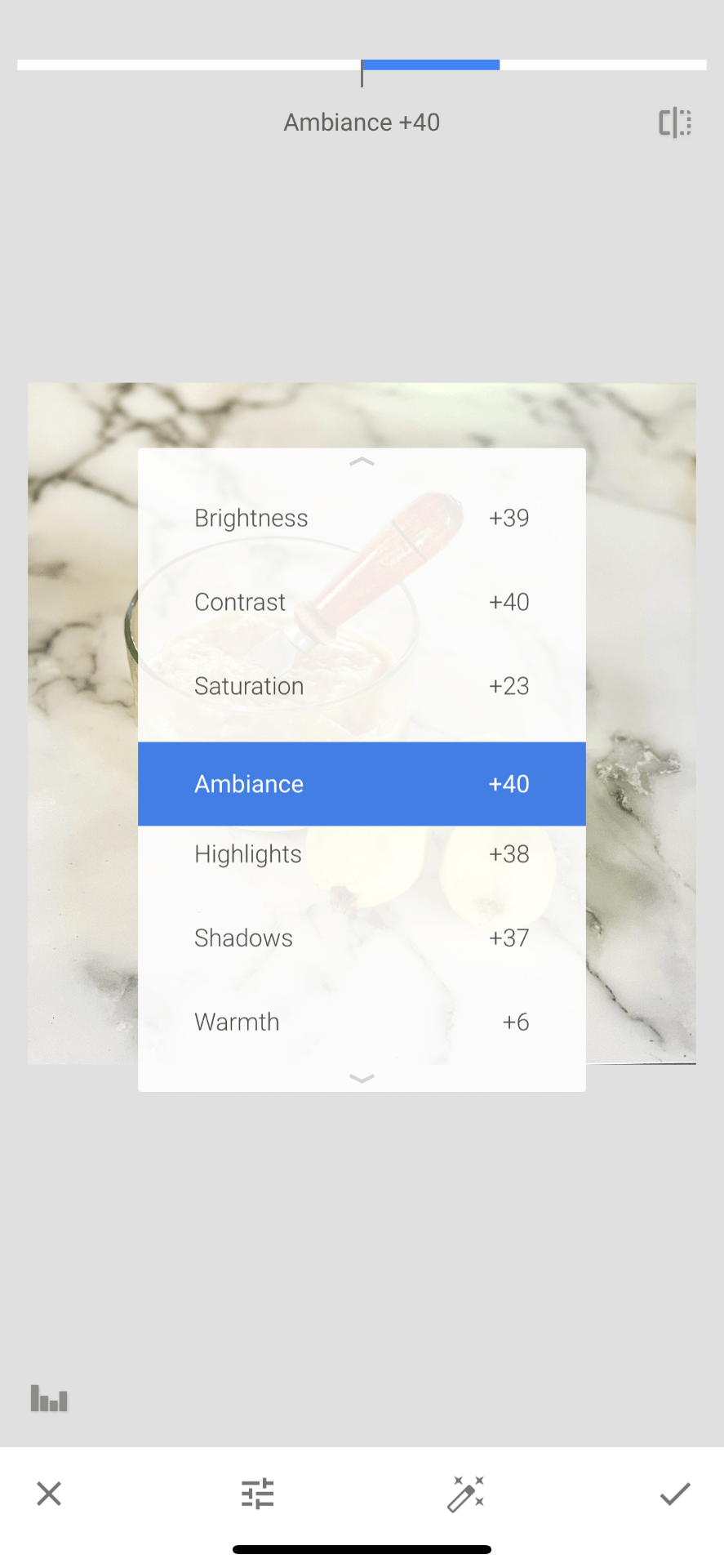
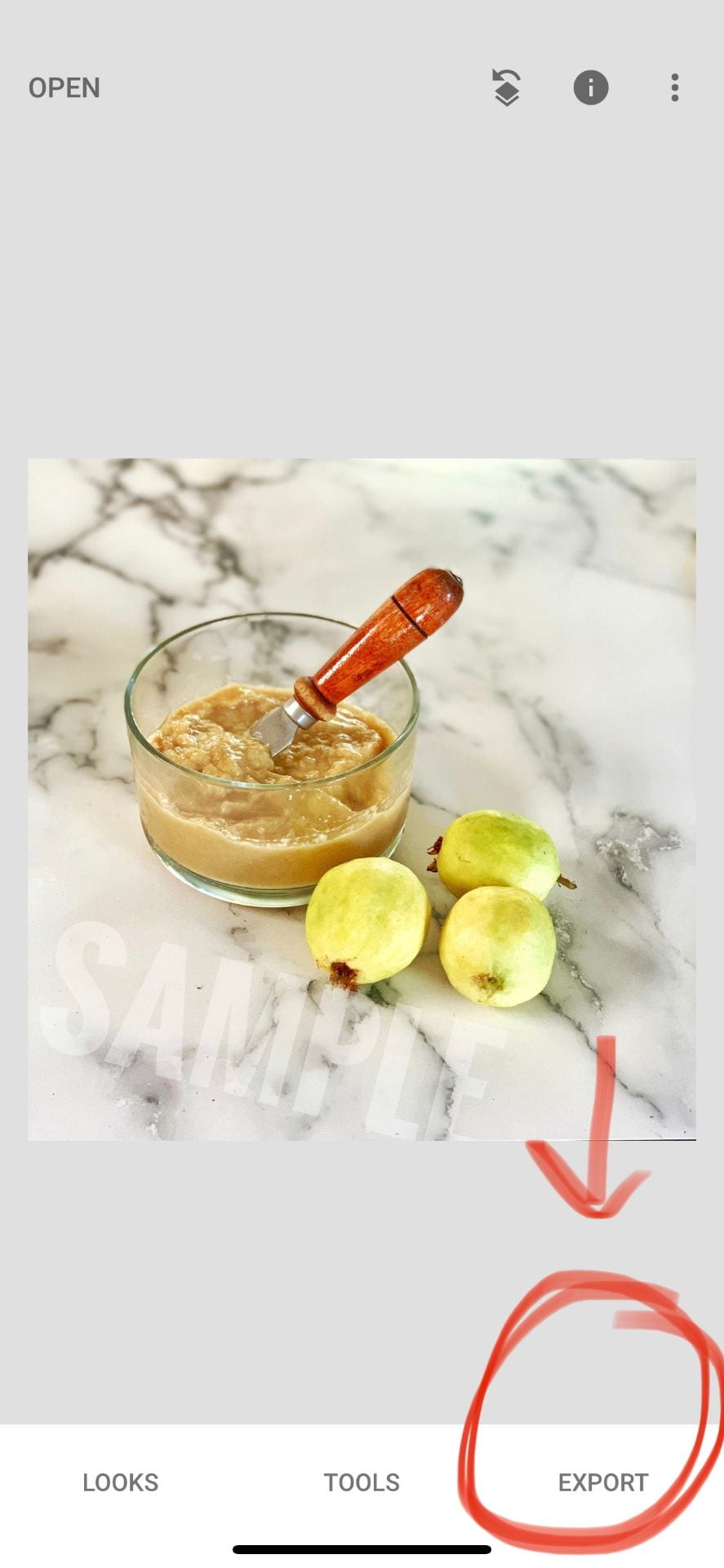
1.Edit Guava Photo (from this website)

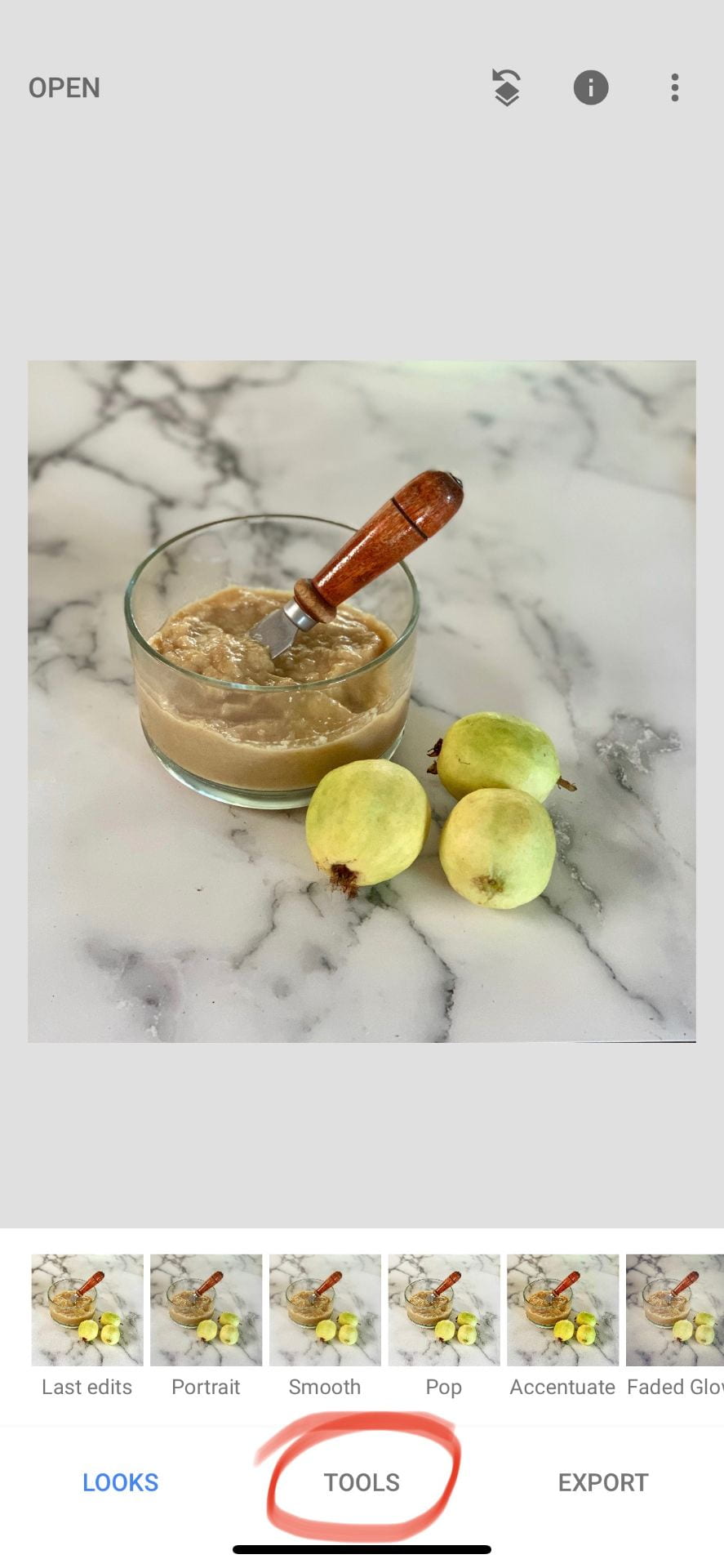
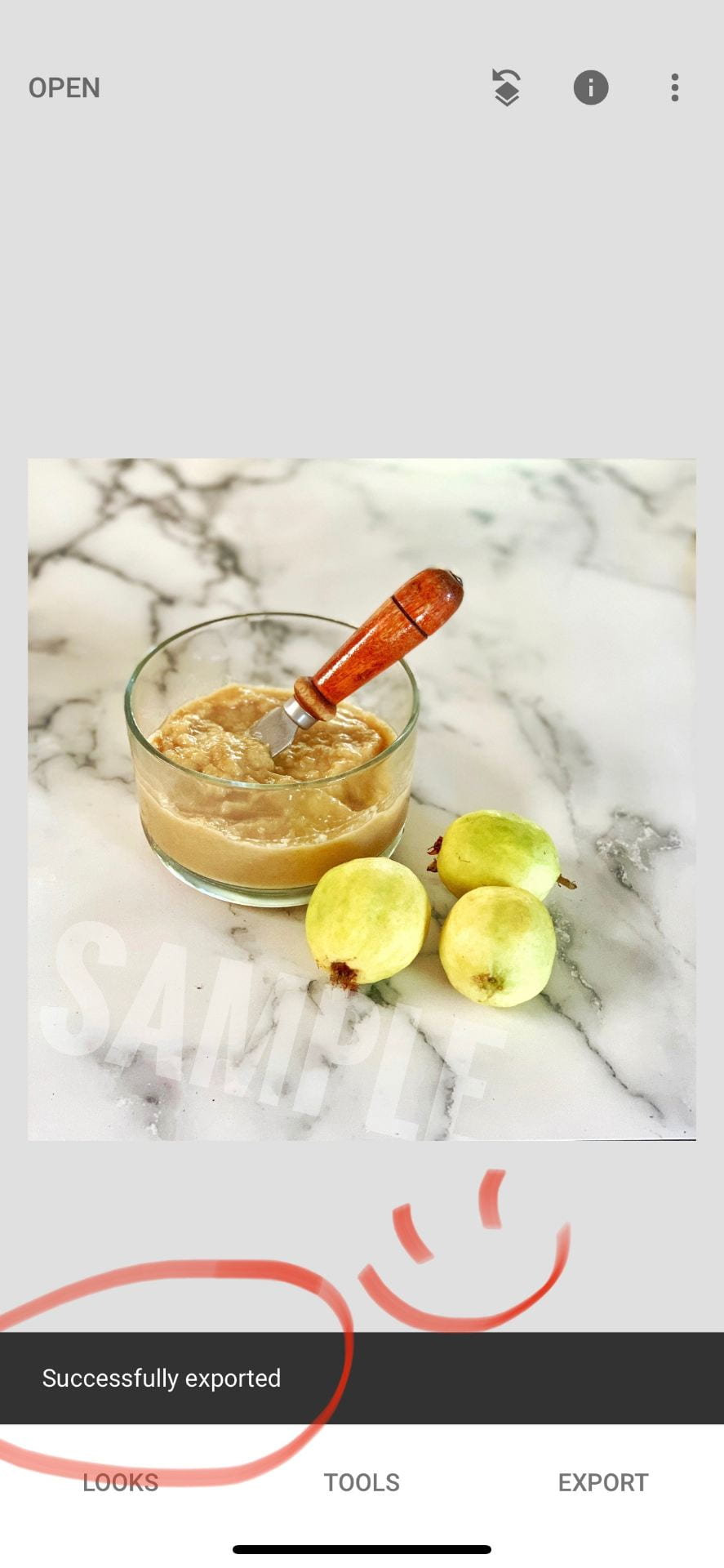
For the first assignment, I simply want you to copy the following steps, using the same photo below.  With your phone, click on the “before” photo to enlarge it, press your finger on your screen and select “add to photos” to add it to your camera roll.  Use the same exact number on each tool to achieve the same result as me. (It is also included in the files of the assignment on Teams).

Put your before and after on a collage and turn into the Teams assignment: “Edit Photo from Website”.

2. Edit 6 Photos

Watch this video and use any combination of these editing techniques plus the ones above to edit 6 photos already saved in your camera roll.  It can’t be photos already used for a project in this class, though.

Place the before and after photos onto a evenly spaced 12-photo grid collage and turn in on Teams: “Photo Editing Assignment”.

Posted in Advanced Photo Assignments

FRIDAY 9/25/20: GALLERY WALK + FLIPGRID REFLECTION + WEEKEND PHOTO CHALLENGE

In this post:

  • Discuss 4×4 schedule
  • Gallery walk
  • Flipgrid Reflection #2
  • Weekend Photo Challenge

Happy Friday!  We have completed week 5!

Only 4 more weeks until the end of Term 1 (AKA: 1st semester)!

 

FYI here is some info on the 4×4 schedule we’re on this school year:


GALLERY WALK INSTRUCTIONS

1.Head over to our class period PADLET gallery wall using the link below:

https://padlet.com/delasa/period4

2. Look at all the 3-D Text Photos.  Go to your favorite 2 and leave some feedback: what do you love about their photos?

3. Now go to another 2 photos and provide feedback on how it could be improved.

You don’t have to provide your name, if you don’t want to.


FLIPGRID TIME!

Click on your class period link below to find the instructions on what to record!

Click here for Flipgrid instructions/questions

Log in with Microsoft (with your student email and password)


WEEKEND PHOTO CHALLENGE: LIGHT & SHADOW PHOTOGRAPHY

  • First, watch these fun videos on a personal device:

View in full screen mode by clicking on the icon on the bottom right of the YouTube video.

View in full screen mode by clicking on the icon on the bottom right of the YouTube video.
  • Have a look “light and shadow photography” in Google images and some shadow boards on Pinterest.

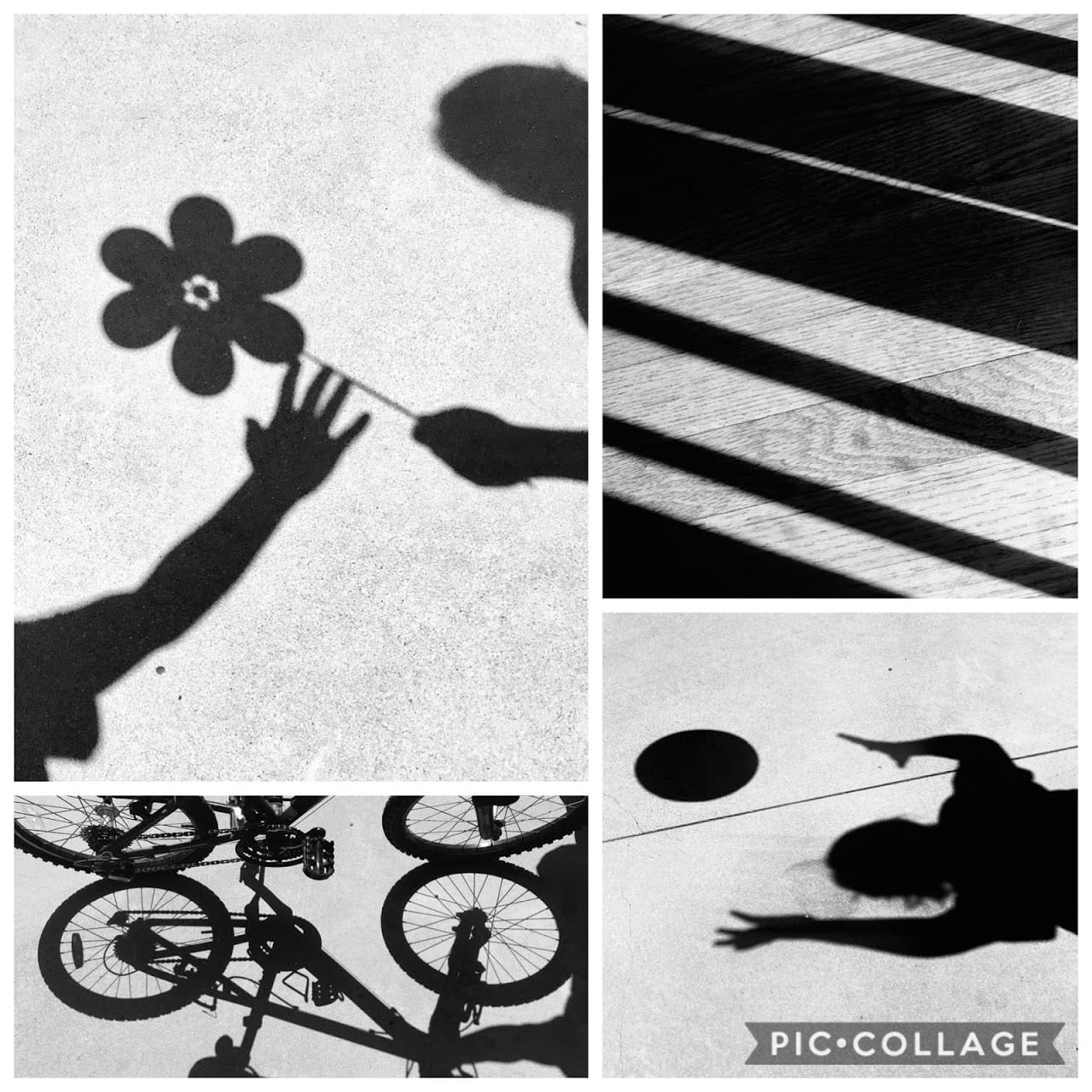
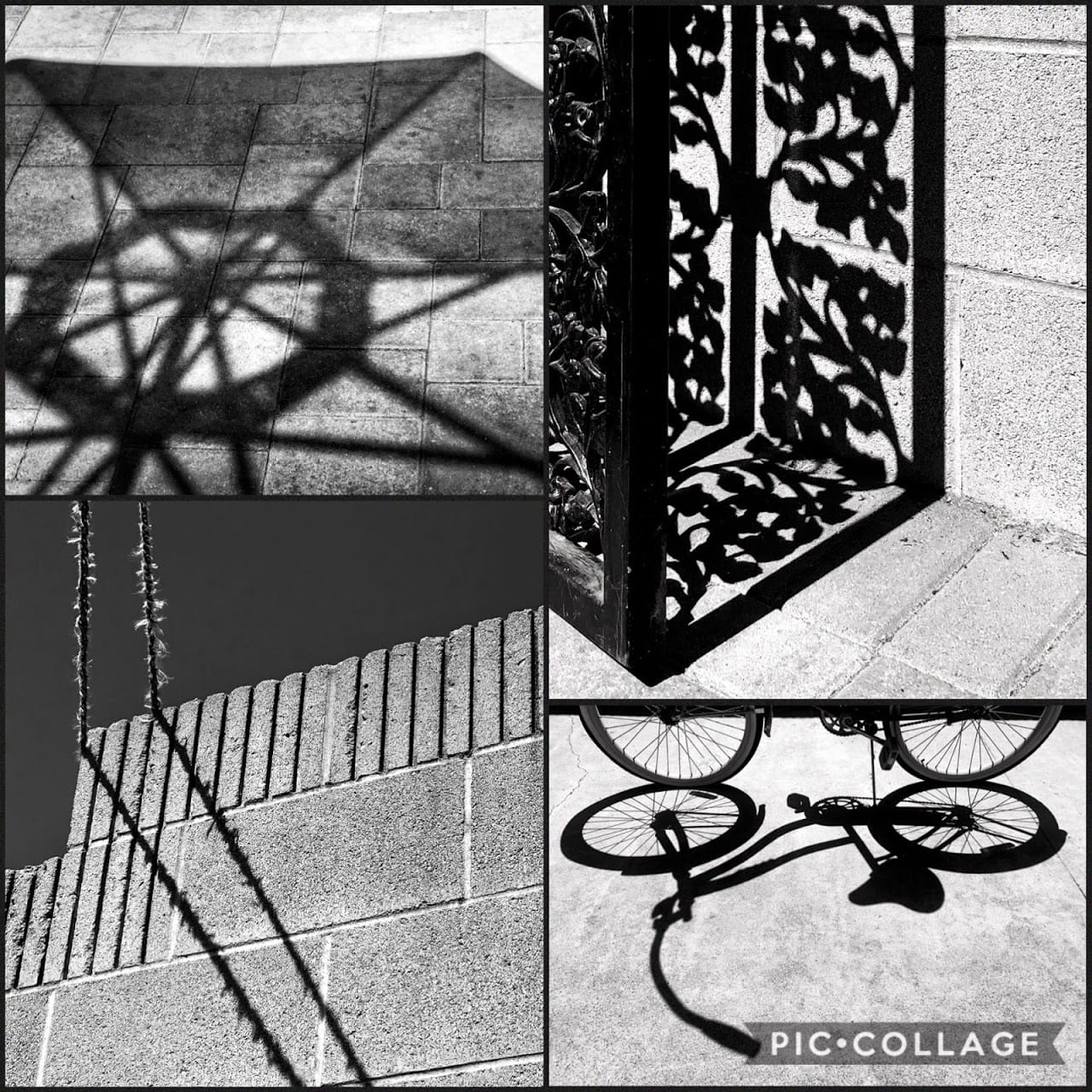
  • Take at least 10 pictures of shadows that illustrate repetition, pattern or interesting shapes.

  • In Snapseed convert to a high contrast black and white picture.

  • Create a collage of your four favorite edited pictures.

  • Turn in your assignment onto Teams “Light and Shadow Photography”.

Due Monday 9/28/20!

Examples:

Posted in Advanced Photo Assignments

Thursday 9/24/20: Catch Up Day (yay)!+ Extra Credit + Stress Relief Resources :)

Photo projects to catch up on (from recent to past):

-3-D Text on Shoe Photo

-“Photo Shoet” (fill the frame photos)

-Rules of Composition Photos (in PowerPoint)

-Refraction Photography

-Natural Frames Photos

-Digital Collage


*Extra Credit*

Use one of the hacks from this video and turn in your best photo to the “Post Your Questions Here” channel on Teams (make sure you “nailed” the photo trick!)…

https://www.youtube.com/watch?v=dwl3cdWzC0E&t=197s


Feeling Stressed?  Need a break? 

Try one of these meditation or mindfulness videos (I recommend the animated ones):

https://www.youtube.com/channel/UCvHCw-Pc9Cl9VeZrvEVldEw

https://www.youtube.com/channel/UCZ0XvEszYoBrDzBgUKEwVEA

https://www.youtube.com/channel/UC3JhfsgFPLSLNEROQCdj-GQ


Posted in Photo 1 Assignments

Thursday 9/24/20: Finish Mix & Match Project + Missing Work + Extra credit + Mindfulness resources…

Photo projects to catch up on (from recent to past):

-Mix and Match Rules of Composition Mood Photos

-Fill the Frame Car Shoot

-Natural Framing Photos

-Rule of Thirds Photo Project

-My Toy Story


Continue reading “Thursday 9/24/20: Finish Mix & Match Project + Missing Work + Extra credit + Mindfulness resources…”

Posted in Advanced Photo Assignments, Photo 1 Assignments

Wellness Wednesday 9/23/20

Go to Teams and open the Wellness Wednesday 9/23/20 assignment. Answer the 3 questions in the Word document after viewing these videos.

Note: YouTube videos can only be viewed on personal devices.

Laura Zalenga

https://www.adorama.com/alc/episode/through-the-lens-s04e05-laurazalenga


Haru “wagnus”

https://www.adorama.com/alc/episode/through-the-lens-s03e13-wagnus-season-finale


Posted in Advanced Photo Assignments

Tuesday 9/22/20: Adding 3-D Text to a Shoe Photo!

3D TEXT EDITING!

Due: Thursday 9/24/20

For this project I want you take one of your photos of your shoes that you took in the last assignment below and follow the YouTube tutorial to add the name of the brand to your photo. If your shoes do not have a brand name, you can add your name to the shoe.

  1. Choose your favorite shoe shot from the last assignment. One showing the laces is quite good for this.

  2. Make sure you edit the image BEFORE you add text to it. You could turn it black & white or tinker with the contrast and saturation to make the colors pop. You can use your mobile phone or the free Snapseed app to edit.

  3. Then watch the following YouTube video which will show you how to add and edit text using Snapseed:

4. Go back to Teams and turn in your edited image to the assignment: 3-D Shoe Text.

Below are examples of the photograph you will create following this lesson:

Posted in Photo 1 Assignments

Tuesday 9/22/20: Submit Brainstorming for Mix & Match Photo Project…

Today you will be given class time to work on your Mix and Match Photo Project (instructions were posted yesterday…scroll down to view).

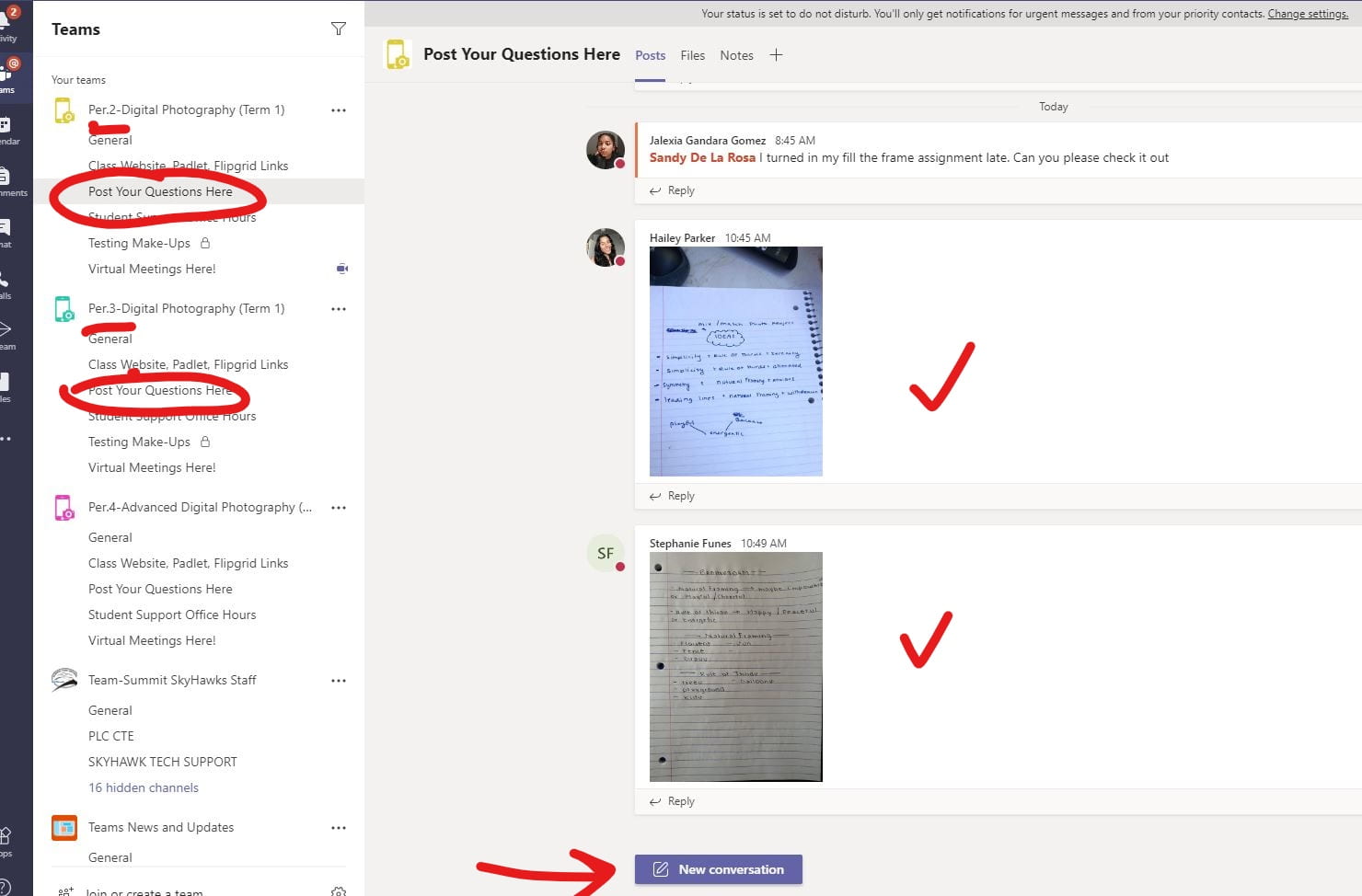
  1. You will need to complete steps 1 & 2 in a notebook (preferably).  When you are done brainstorming ideas for imagery and you have decided on what mood + rules of composition you will use for each photo, write it down.
  2. Take a photo of your brainstorming/notes/sketches.
  3. Submit that photo of your brainstorming/notes to the channel on Teams titled, “Post Your Questions Here”.  You will receive points for posting. (See screenshot below…) This is due this class period!!
  4. Then you can continue to step 3 which is your photo shoot!  Use class time to work on this so you don’t have so much homework! 🙂