Posted in Photo 1 Assignments

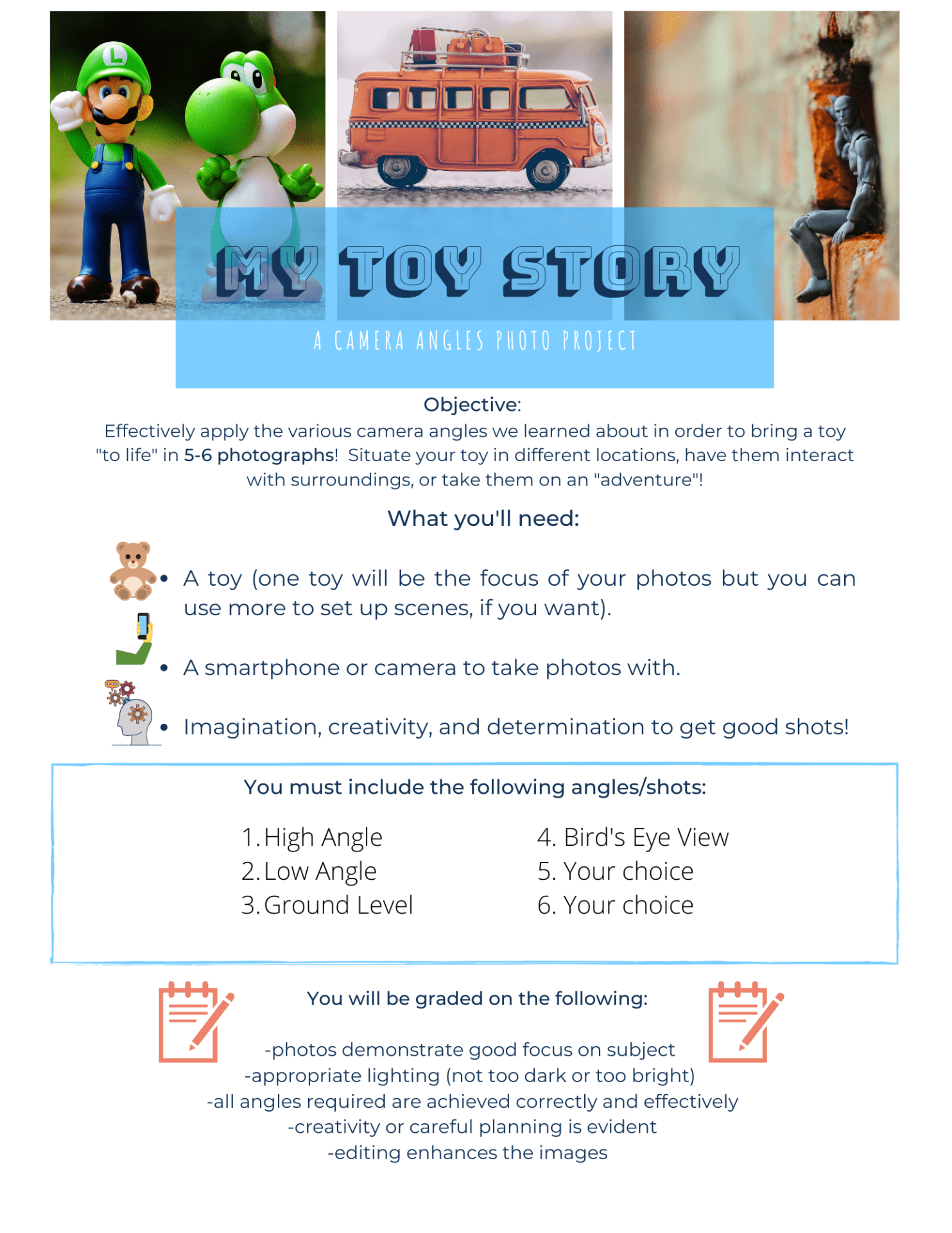
Friday 1/29/21: My Toy Story

Today’s Agenda:

  • Video: Jerry Business-Little Toys, Big World
  • Photo Project: My Toy Story-DUE: Monday February 1st
  • Analyze student examples and search for inspiration


My Toy Story Project

Instructions to turn in:

  • Submit your 5-6 EDITED photos on Teams as individual files.
  • Choose the best one OR put all on a collage to share with the class on the class Gallery Wall on Padlet!


Check out some student examples on the Photo 1 Gallery on this site!

Then do a Google Image search of “Toy Photography” to get some inspiration and ideas!

Share with the class which toy you plan on using for this project.  Wait for my cue if you’re willing to share your toy by turning your video on.  If you don’t want to enable your video, upload a quick photo of the toy to the Questions and Discussions channel on Teams!


Posted in Photo 1 Assignments

Thursday 1/28: Camera Angles

Today’s Agenda:

  • Camera Angles PowerPoint and Notes
  • Camera Angles Review Activity

Camera Angles

You will need to take down a few notes as we discuss camera angles.  You may use paper and pen, Word document, or a notes app from your phone.  Later when I collect your notes, you may upload them in any format as long as it’s legible!

PowerPoint: Camera-Angles


Review Activity

This activity is to assess whether you can identify/recognize the camera angles in existing photos.

  1. Find and save a photo online to demonstrate EACH of the camera angles we just learned about (6 total). I recommend using Pexels.com, Pixabay.com , or Google Images.
  2. Create a Powerpoint or Word doc containing the photos you found.
  3. Make sure to label/title each camera angle you are demonstrating.
  4. Extra credit points if all photos follow a theme or aesthetic (dog photos, nature, vintage, architecture, the color green, etc.). Explain your theme at the end of the PPT/document to get the extra points!
  5. Turn in your PPT or Word document in the Teams assignment titled, “Camera Angles Review Activity” by the end of today.


Posted in Photo 1 Assignments

Tuesday 1/26/21: Chaffey Application + Saving to OneDrive

Today’s Agenda:

  • Creating your online photo portfolio with Padlet (video tutorial located  previous post)
  • Chaffey Application
  • Using OneDrive cloud storage (demonstration + video tutorial)

Good job on the SBVC application, everyone!  Now let’s complete the Chaffey application.  This should go quicker because OpenCCC will transfer some of your info from one application to another. 🙂

College App Steps – Chaffey PowerPoint pdf

Links from the PPT that you need to open with Google Chrome:

https://www.chaffey.edu/applypay/index.php

***************************

For those who already have a Chaffey college ID number, use the directions with the link provided below:

CATEMA Directions – pdf

https://catema.com/acsys/home.php


Here is a little video showing how to upload photos from your phone to your OneDrive cloud storage:

Posted in Photo 1 Assignments

Monday 1/25/21: SBVC College Applications + Your Photo Portfolios

Today’s Agenda:

  • Questions about “Getting To Know You” project?
  • San Bernardino Valley College applications
  • Creating your photo portfolio on Padlet

Yay! You are on your way to receiving college credit for this class. Today we’ll begin with our SBVC college applications! Get your Chrome web browser ready!

This first link opens up a pdf file that shows every step of the registration we will cover today:

College App SBVC PowerPoint pdf

The following links are the same ones from the pdf file but I placed them here for easy access.  Copy and paste into your Google Chrome web browser:

https://www.openccc.net/uPortal/p/AccountCreation.ctf1/max/render.uP

https://www.valleycollege.edu/apply

Do you have a SBVC college ID already?  Then click below:

CATEMA Directions – pdf


Now it’s time to create your student photo portfolio on Padlet!  I created a video tutorial for you here:


Posted in Photo 1 Assignments

Friday (yay!) 1/22/21: Uploading to Padlet and Survey

Today’s Agenda:

  • Another survey
  • Preparing for college applications next week
  • Upload your “Getting to Know You” photo to Padlet
  • Viewing and commenting on Gallery Wall
  • Photo Student Portfolios on Padlet

Head over to the General channel on Teams to take the survey!


Like mentioned before, this class is worth college credit at two local community colleges.  On Monday we will begin the registration process so you can get your free college credits when you complete both semesters of this course! 🙂

College App Q & A for Chaffey 2020-21 pdf

College App Q & A for SBVC 2020-21 pdf


-Uploading to our Class Gallery Wall on Padlet:

Use the link below or the QR code found on Teams to upload your edited “Getting to Know You” photo.  Include your name + a short explanation about how that object represents you or why you chose it.

Period 2: Click here to upload

Period 3: Click here to upload

Period 4: Click here to upload

-Gallery Viewing and Feedback: 

When everyone has posted you will then need to view the work on the gallery wall, find 3 photos that you like, and comment on them.  Your comment can include why you like their photo or object. Or maybe you want to share how you relate to the object too.


Over the weekend, create a Padlet account of your own!  This will be used as your online photo portfolio to showcase your photo projects from the class. 

Sign up for free with your Microsoft account (Student email and password).

Create a Padlet named “My Photo Portfolio” using the “Wall” or “Grid” formats.

Posted in Photo 1 Assignments

Thursday 1/21/21: Editing with built-in photo app

Today’s Agenda:

  • Editing tutorial and practice
  • “Getting to Know You” Photo Assignment Part II
  • Reminder to sign up with Remind! (Lol)
  • Questions?

How To Edit Photos On iPhone Using The Built-In Photos App_Website Link

How To Edit Photos On iPhone Using The Built-In Photos App_PDF File

Using the resource above, we will explore the editing capabilities of our smartphones. Today we will focus on the editing features covered in sections 2-4 of the article.

Here are the steps we’ll do together…

  1. Select one of your photos from your recent photo shoot to experiment with and duplicate the photo like the article mentions in section 2.
  2. Open the photo editor (section 3) and select Adjust icon. Go through EVERY adjustment tool discussed in section 4, beginning with “Auto”. Use the slider in each tool to go far left then far right before you put it back at zero (0). Then move on to the next adjustment tool. This allows you to see what each particular adjustment tool does!
  3. Now click on the Filter icon and check out how they each look on your photo.

Getting to Know You (Part II)

After taking 10-15 photos of an object that represents who you are (or that has significance in your life), you will need to do the following steps next:

  1. Place all the best 10 photos on a collage.  You can use PicCollage or any other collage app you may already use. This video (YouTube) shows you how to use PicCollage.
  2. Then, pick ONE photo you think came out the best and duplicate it before you edit it using your built-in editing in your photos app.  It is up to you what adjustment tools you apply but some of the most common ones would be: brightness or brilliance, saturation or vibrance, and contrast. But it depends on what your photo needs.
  3. In the “Getting To Know You” Teams assignment, upload: 1) your collage, 2) your chosen photo in original form, and 3) your chosen photo after editing.
  4. Do a little dance!


Posted in Photo 1 Assignments

Tuesday 1/19/21: WELCOME to Digital Photography (Virtual Style!)

Agenda:

  • Introductions: Virtual Classroom Norms & Syllabus
  • Your first photographic assignment: Getting To Know You!
  • Exit Survey

Click the image below to enlarge Classroom Norms, then click the link below to view Digital Photography Syllabus.

Digital Photography SYLLABUS_Virtual Edition_Session 2


GETTING TO KNOW YOU

In this first assignment I want you to look around your house and find something that represents who you are. Find something that is super special to you or an object someone gave to you that has significance in your life.

Now that you have selected the object, I want you to have a little photo shoot with it.

At this point, I know I haven’t taught you anything about photography. I want to you to put on your “photography hat” and pretend you have been hired by a company to photograph that thing. You are going to fake being a professional photographer.

Take about 10-15 photos of this ONE object. Keep these in your camera roll or upload to your OneDrive if you know how until Thursday!


Exit Survey is located in your Teams assignment. It is required and will be used as attendance today.

Posted in Advanced Photo Assignments, Photo 1 Assignments

Tuesday 1/5/21: “Art in the Plague Year” assignment

Today’s agenda:

  • “Art in the Plague Year” Assignment
  • College Applications and CATEMA Enrollment (scroll to yesterday’s post for links)
  • Work on Your Photo Essay!

Art in the Plague Year-Photo Exhibition

Click on the link below (using your laptop, preferably) and take some time to view the work in this exhibition. Many of these are photo essays! Follow the directions below, answer the questions, and turn into Teams in a Word document.

https://www.artintheplagueyear.com/

There are 8 categories of work in this exhibition. Though I recommend looking at all of them, you only HAVE to view all the various work in the “PRESENCE” category for this assignment (total of 6 photographers in this category). Be sure to read the information that goes along with their work. Then answer the questions:

  1. Who’s work did you find the most interesting and why?
  2. Which photographer was exploring the innocence and vulnerability of kids during the pandemic?
  3. Which photographer studied both photography and psychology?
  4. Which photographer took their photos at night and WHY?
  5. How many photos did Lilli Water make per photo session?
  6. Do you enjoy looking at the work of other photographers?


Posted in Advanced Photo Assignments, Photo 1 Assignments

Monday Jan. 4, 2021: Putting our Photo Essay Together!

Welcome back!

First thing: please upload one image onto Padlet from your winter break to share with the class!  Feel free to type in any information about it.  🙂


Our photo essays are due this Friday, Jan. 8th!

Let’s revisit the Photo Essay Project criteria and details:

Photo Essay Personal Project_PDF Format

Photo Essay Personal Project_PPT

Photo Essay Submission Options:

  • Padlet
  • PowerPoint
  • Sway Presentation

Still stumped on what to do your photo essay about?  I’ll show you some of the photos I’ve taken for my photo essay. 

Here are some last minute ideas for those who haven’t chosen a topic yet:

-document the making of a recipe

-photographs that demonstrate your hobbies/interests/talents

-series of self portraits to showcase different emotions, styles, or identities

-portraits of each person in your household

-photograph what someone collects (shoes, figurines, gnomes, hats, etc.)

-series of photos that show beauty in the mundane/the everyday

-choose an emotion and find different ways to express it through photos

-day in the life of…

-photos of objects that represent quarantine life

What matters most is that you pick something that is interesting to you and employ as many techniques and fundamentals of photography that we learned in class (camera angles, rules of composition, lighting, focus, depth of field, freezing or blurring action, cropping to improve composition, flat lay, meticulous, portraits, and so on).


College Application Timeline Infographic

College App Steps Chaffey PowerPoint pdf

College App Steps SBVC PowerPoint pdf

Steps for CATEMA (goes with link below)

CATEMA Link (Last Step!)