Posted in Advanced Photo Assignments

Thursday 9/30/21: Padlet Peer Reviews + More Photoshop Tutorials

Today’s Agenda:

  • Complete all past due assignments
  • Complete college applications
  • Padlet Peer Reviews
  • Photoshop Tutorials

Padlet Peer Reviews

In the “Important Links” channel on Teams you will find the Padlet Gallery Wall link. Click to open.

View the edited Splash Photos created by your classmates.  You will need to comment on at least 3. Your feedback should include:

  1. What you like about their photo
  2. What could have been improved or changed to fit the criteria of the project better or just ideas on how it could have looked better
  3. Your first name and last name initial 

If you see a portrait that already has 3 comments by other people, skip it and comment on another (this way everyone gets feedback!).  If they all have 3 or more comments, then you can comment on any you want.


Photoshop Tutorials

Save your resulting images as a JPG in your One Drive!

Here’s how you get to the tutorials:

Open Photoshop.

Go to “Help” at the top and select “Hands-On Tutorials”.

Use the following category and skill level: Category: Photo Editing & Skill Level: Beginner.  If the tutorials don’t show, restart Photoshop and try again.
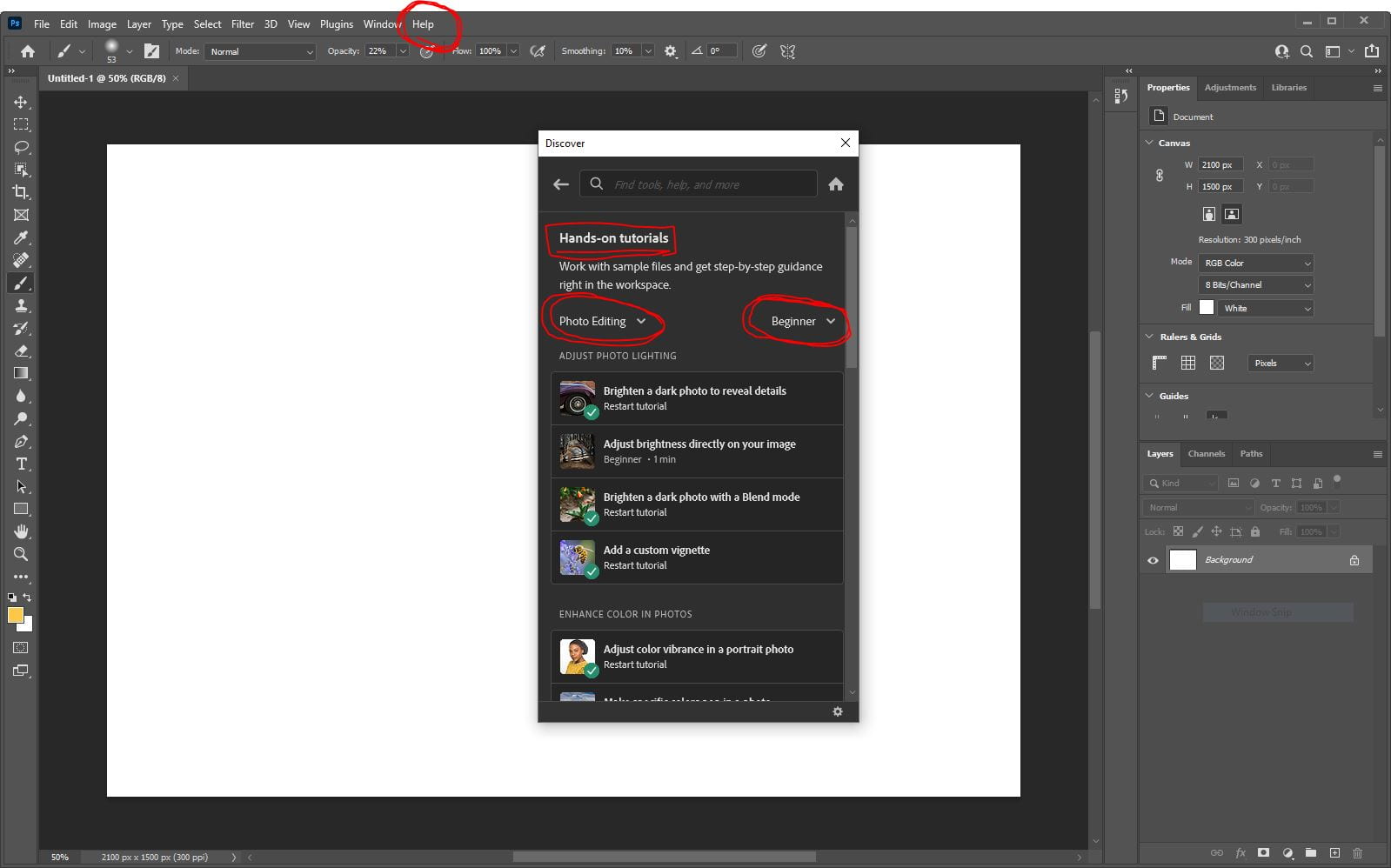
Complete the tutorials marked with a red checkmark:

When you complete a tutorial.  Export as a JPG image and save to your One Drive.

When you complete all 7 tutorials, post the images on your blog as a gallery. You will turn in the link on Teams tomorrow.
 

Posted in Photo 1 Assignments

Thursday 9/30/21: Padlet Peer Reviews

Today’s Agenda: 

  • Complete all past due assignments (quarter grades are coming up soon!)
  • Complete college applications (from Monday’s post)
  • Padlet Peer Reviews
  • Prepare for tomorrow’s shoot: Freezing and Blurring Action

Padlet Reviews

In the “Important Links” channel on Teams you will find the Padlet Gallery Wall link. Click to open.

View the edited Symbolic Portraits w/ Shallow Depth of Field projects created by your classmates.  You will need to comment on at least 3. Your feedback should include:

  1. What you like about their photo
  2. What could have been improved or changed to fit the criteria of the project better or just ideas on how it could have looked better
  3. Your first name and last name initial 

Remember that they didn’t take the photo, their partner did. But you can still explain to them how they could have directed their partner better with the feedback above.

If you see a portrait that already has 3 comments by other people, skip it and comment on another (this way everyone gets feedback!).  If they all have 3 or more comments, then you can comment on any you want.


Freezing and Blurring Action

Tomorrow we will experiment using Shutter Priority Mode on the class cameras to capture fast motion outside.  We could use more props to help us out.  If any of you have tennis balls and basketballs you can bring tomorrow, please do! Wear comfy clothes/shoes too.  We may be jumping around a bit… 😉

Take a look at the Adv.Photo Gallery tab here on the class website to see some shutter speed experiments that my Advanced Photo students have produced recently.  Also, the Photo 1 Gallery tab has some frozen and blurred action as well if you scroll through.  Take a look!


Posted in Advanced Photo Assignments

Wednesday 9/29/21: Peer Critiques and Reviews

Today’s Agenda:

  • Turn in any past due assignments
  • Uploading Splash photos to Padlet Gallery Wall
  • 4-Step Critique of levitation or long exposure photo

Once you have submitted all you Splash photos on Teams (parts 1 and 2), choose your best one to share with the class on the Padlet gallery wall: https://padlet.com/delasa/period4


4-Step Critique

Go to the Adv. Photo Gallery on this class website to view the levitation and long exposure photos produced by your classmates.  Choose one photo from a student that is not in your group to critique.  Click on that photo to enlarge it, right click, then save image to your OneDrive.

Create a new post on your blog for your 4-step critique and include the photo you are critiquing. 

Describe: what you see in the photo-subjects and other visual elements

Analyze: how the photo was created-camera angle, composition, shutter speed, depth of field, color, editing, etc.

Interpret: what it communicates- mood, theme, ideas, aesthetic, story, etc.

Judge/Evaluate: What do you like/love about it? Did they succeed in the assignment?  What could have been improved?

If you need a refresher on the 4-step critique process: 4-Step Critique PPT


Posted in Photo 1 Assignments

Wednesday 9/29/21: Shutter Speed Video Questions

Today’s Agenda:

  • Finish college applications and past due assignments
  • Shutter Speed Video Questions
  • Work on Monthly Challenge

Use the Form in the Teams assignment to answer the questions as you watch the following video.  (The questions tell you when to pause.)  Borrow a headset to watch the video.

EdPuzzle code: kopvehh

https://edpuzzle.com/open/kopvehh

Posted in Advanced Photo Assignments

Mon & Tues 9/27-9/28: College Credit Applications

Today’s Agenda:

  • Apply to Chaffey AND San Bernardino Valley College (for those who didn’t get their college credit last year)
  • Sorting through last week’s photos to edit and post
  • Monthly Challenges or use the splash station in the classroom to get more photos!

College Application Timeline Infographic_PDF File

Click the PDF file link above.  It contains the steps and links necessary.

To get your college credits for this class you must:

  1. Apply to Chaffey and SBVC
  2. Wait for an email containing your College ID number (this can take several days to receive)
  3. Register with CATEMA to add yourself to my Chaffey roster
  4. Register with CATEMA again to add yourself to my SBVC roster
  5. Pass both semesters of photo with a B- or better + pass the final exam (at the end of the year) with a 70% or better + put together a photo portfolio with 6 of your best photos from the year. Congrats!

Splash Photos

Edit and post your best Splash photos that YOU took outside last week (your choice on amount of photos).

With your group members, look through all the photos you all captured in class on Friday.  Delete any obviously blurry photos or photos that missed any action.  Borrow a USB flash drive from me if you need to transfer photos to your group members (you all need copies).

Choose the best 4-6 photos YOU took on Friday to edit and post.

Posted in Photo 1 Assignments

Mon & Tues 9/27-9/28: College Credit Registrations

Today’s Agenda:

  • Apply to Chaffey AND San Bernardino Valley College (Step 1 ONLY)
  • Complete, post, and turn in all assignments from last week
  • Work on monthly challenges-Due 10/16/21

USE GOOGLE CHROME FOR THE APPLICATION PROCESS!

College Application Timeline Infographic_PDF File

Click the PDF file link above.  It contains the steps and links necessary. Start with Step 1: Chaffey & SBVC Step-By-Step Application Guides.

To get your college credits for this class you must:

  1. Apply to Chaffey and SBVC (complete this step ONLY at this time)
  2. Wait for an email containing your College ID number (this can take several days to receive)
  3. Register with CATEMA to add yourself to my Chaffey roster (please wait until further notice before you complete this step)
  4. Register with CATEMA again to add yourself to my SBVC roster (please wait until further notice before you complete this step)
  5. Pass both semesters of photo with a B- or better, pass the final exam (at the end of the year) with a 70% or better, and put together a digital photo portfolio with 6 of your best photos from the year that I will submit for you. These are all things you have to do for my class anyway.

Congrats!

Posted in Photo 1 Assignments

Friday 9/24/21: Intro to Shutter Speed

Today’s Agenda:

  • Shutter Speed Fill-in-the-Blank Assignment + Activities
  • If you haven’t already…
  • Turn in your Symbolic Portrait w/ Shallow DOF project to Teams
  • Post your EDITED symbolic portrait of yourself on the Padlet Gallery Wall (see yesterday’s post).

Shutter Speed Fill-in-the-Blank Assignment

Open the document below and follow the instructions.

Shutter Priority Fill in the Blank_Experiment Questions

Website link: http://canonoutsideofauto.ca/learn/


Shutter Priority Mode Experiment

Step 1: Go to http://canonoutsideofauto.ca/play/

Step 2: On the camera modes, select SHUTTER PRIORITY (“Tv”).  

Step 3: Set the shutter speed slider at 1 SEC and take a photo (blue button with camera icon).  Then do the same for the following shutter speeds:  1/10, 1/60, 1/250, 1/1000, 1/4000.

Step 4: Look at the 6 photos you just captured.  Answer the questions about them located in your Fill-in-the-Blank Word document.

Step 5: Clear your photos from the “Your Shots” gallery to prepare for the next round of photos.

Step 6: On the camera modes, select Manual (M). Set the Aperture at 5.6, and ISO on 400.

Step 7: Take the photos at the same shutter speeds mentioned on Step 3 (1 Sec, 1/10, 1/60, 1/250, 1/1000, 1/4000).

Step 8: Look at the 6 photos you just captured.  Answer the questions about them located in your Fill-in-the-Blank Word document.


Posted in Photo 1 Assignments

Thursday 9/23/21: Editing Your Symbolic Portrait

Today’s Agenda:

  • Complete, post, and turn in past assignments + Photoshop Tutorials
  • Edit your Symbolic Portrait w/ Shallow DOF
  • Post your edited portrait to the Padlet Gallery Wall!

Editing Your Symbolic Portrait

Now that you built up some editing skills on Photoshop, let’s put those skills to the test!

Open the symbolic portrait OF YOU (not the one you took of your partner) in Photoshop.

  1. Open Photoshop > File > Open.  Find your photo which should be saved in your OneDrive.
  2. Start by adding adjustment layers like you did in a lot of your tutorials.  Here are some of the ones we covered: brightness/contrast, levels, curves, vibrance, hue/saturation, and black & white.  You don’t have to use all of these!  Just the ones you want.
  3. The use the crop tool (remember to hold down shift when you drag the corners in) to eliminate any extra space or distractions.  (Some of your portraits may already be really zoomed in and may not need cropping.)
  4. Export as a JPG when you’re done and save to your OneDrive.  You will need to rename the file (I like to just add an “E” at the end of the existing file name to stand for “edited”).
  5. Go to Teams > Important Links > Padlet Gallery Wall Link.  Add your EDITED symbolic portrait with a brief explanation of why you chose that particular item.

Reminders:

  • use the eye icon to see what each adjustment layer does to your photo
  • click on an existing adjustment layer if you want to modify it (like if you need to go back to increase brightness, for example)
  • you can select an adjustment layer and hit Backspace on your keyboard to get rid of it
  • when cropping, you need to either hit Enter key or click the checkmark at the top to get rid of the gridlines


Posted in Advanced Photo Assignments

Make a Splash!

Today’s Agenda:

  • Turn in Levitating project in Teams.
  • Discussing and preparing for “Make a Splash” photo experiment (taking place Wednesday and Thursday).

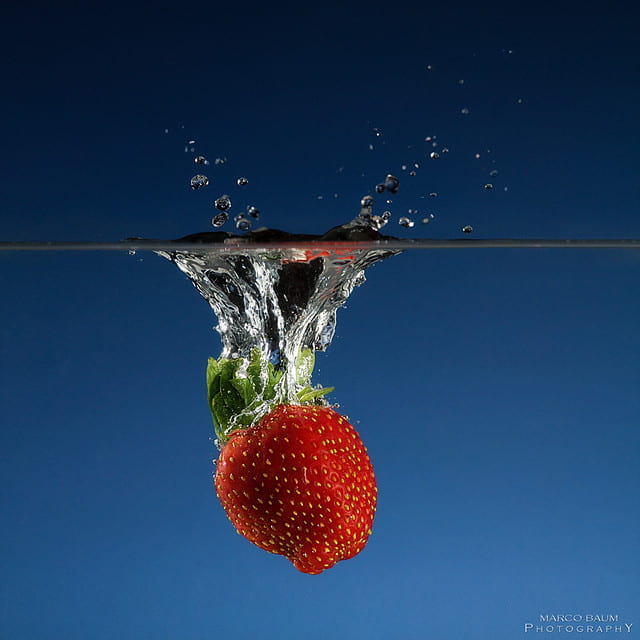
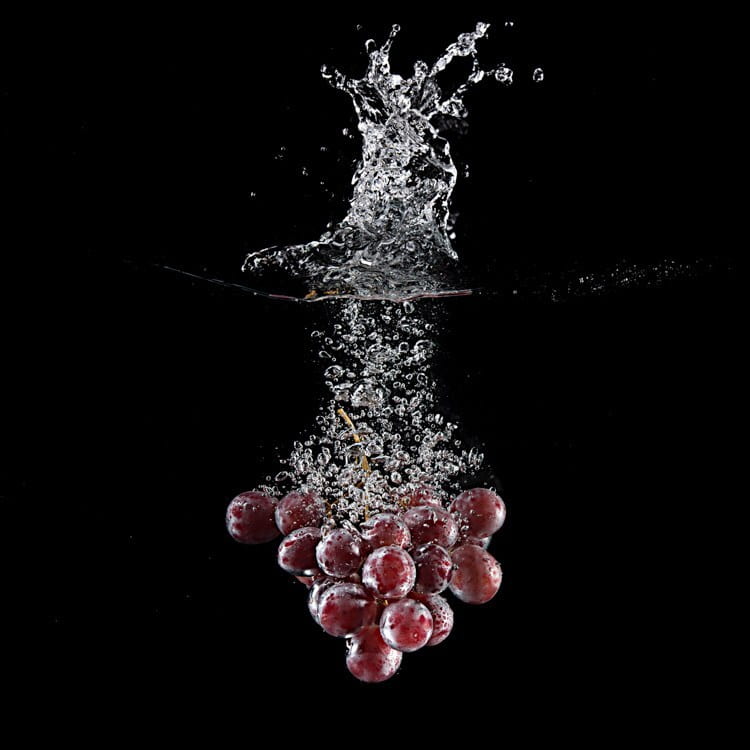
Make a Splash! (Part One)

Objective: use Shutter Priority Mode to freeze the splash of water.

With a group of 3-4, you will need to set up a splash station outside.  You will be provided with materials that you can use as backdrops.

Bring in your own vases, fish tanks, things to splash into the water (or other liquid).  I will provide some limited items as well.

Take turns being the photographer while others hold up backdrops, drop items in water, and assist in other ways.

Edit and Post your best shots (however many you like!) to your blog in gallery mode. Change link to media file, as always. 🙂